Mouse Form
Let's enter the first mouse by following these steps:
- Click on the
Micelink on the toolbar at the top to navigate to the mouse list. - Click on the
Add Mousebutton to open the mouse form.
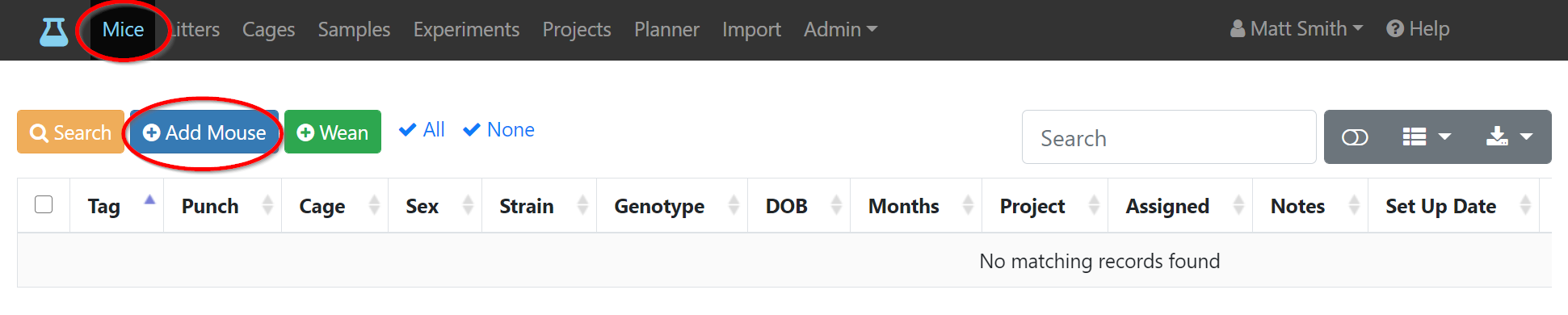
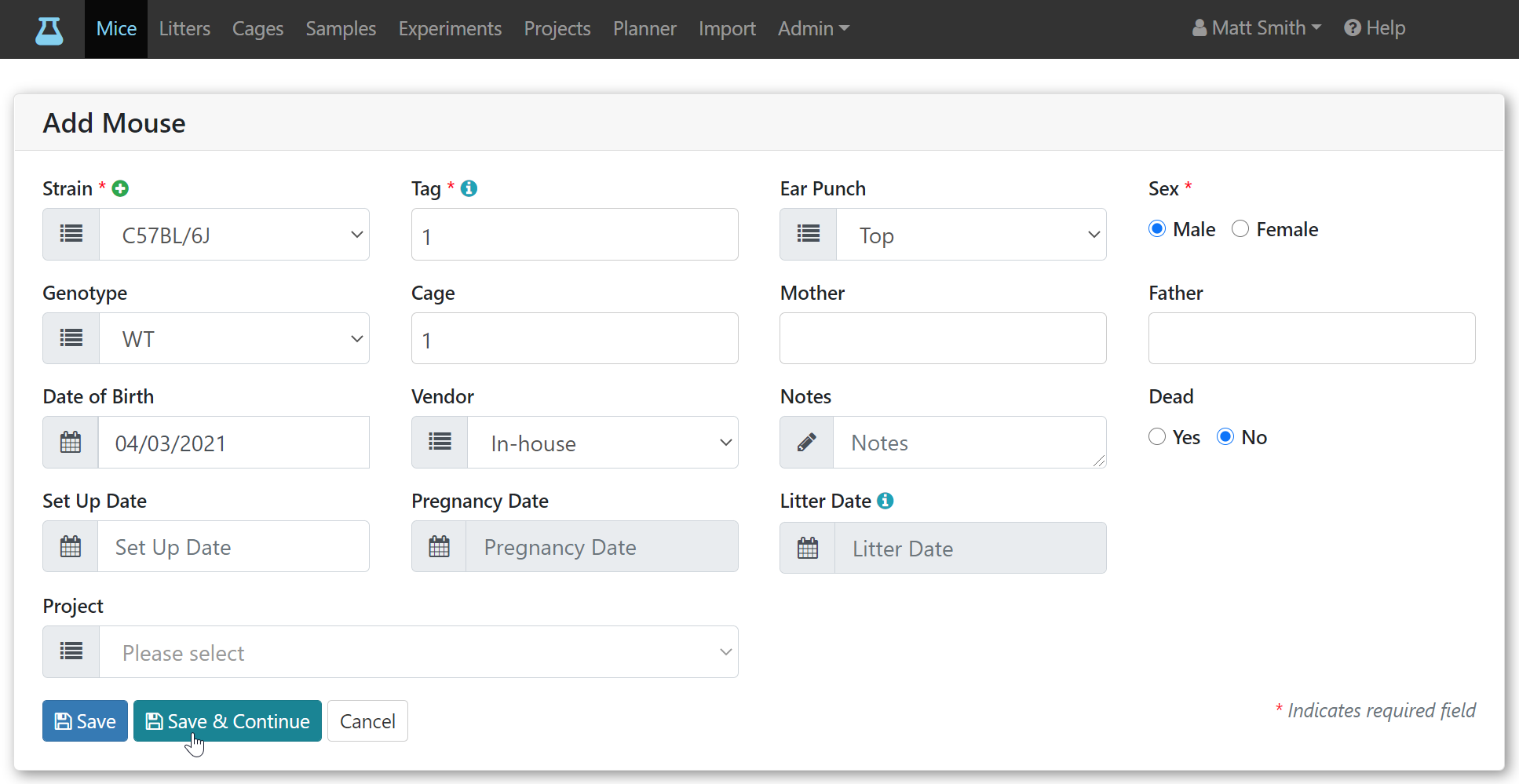
- All fields marked with a red asterisk are required. The
Savebutton is disabled until required fields are filled out. Clicking on the disabled save button marks missing fields in red.
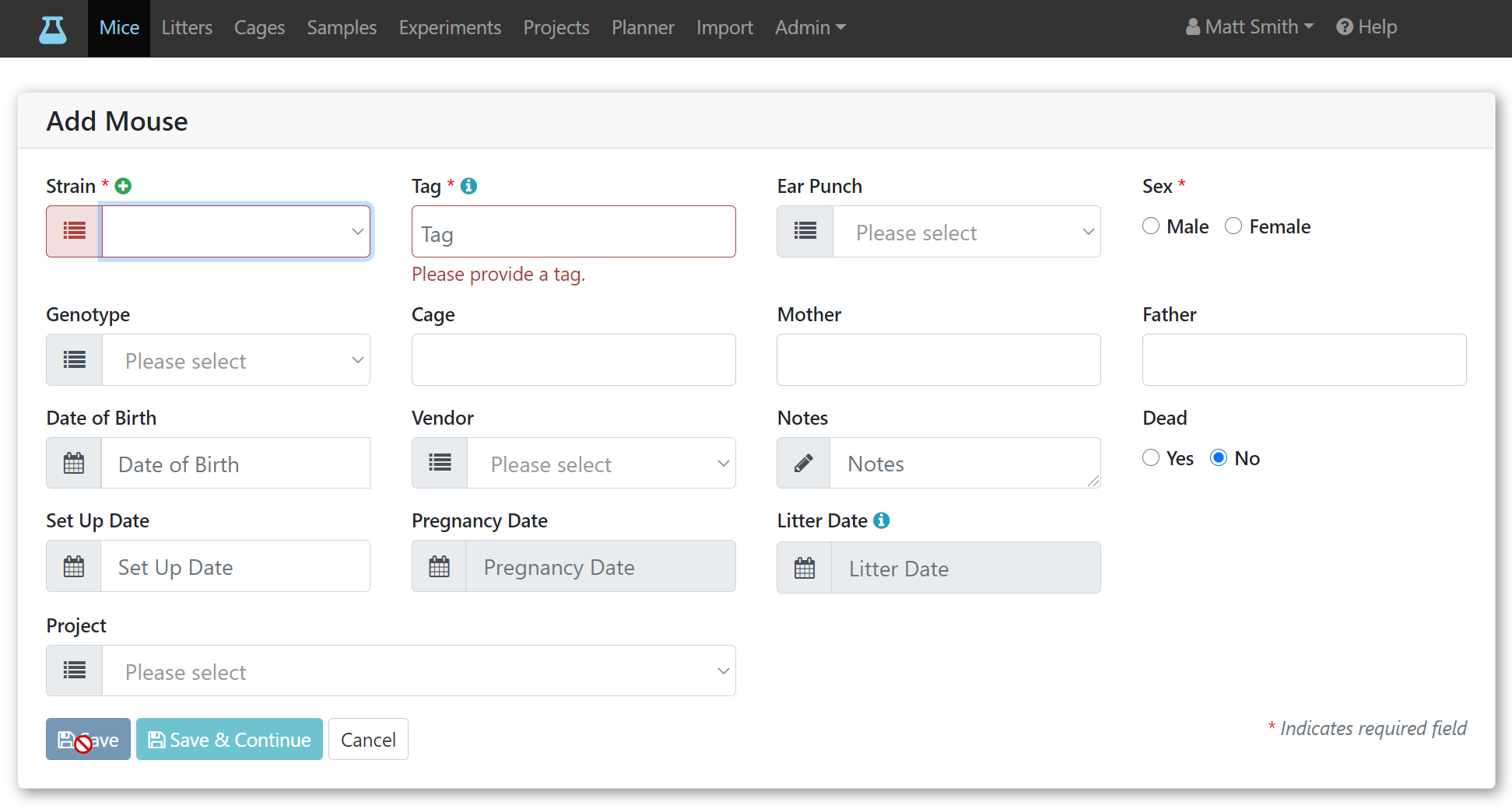
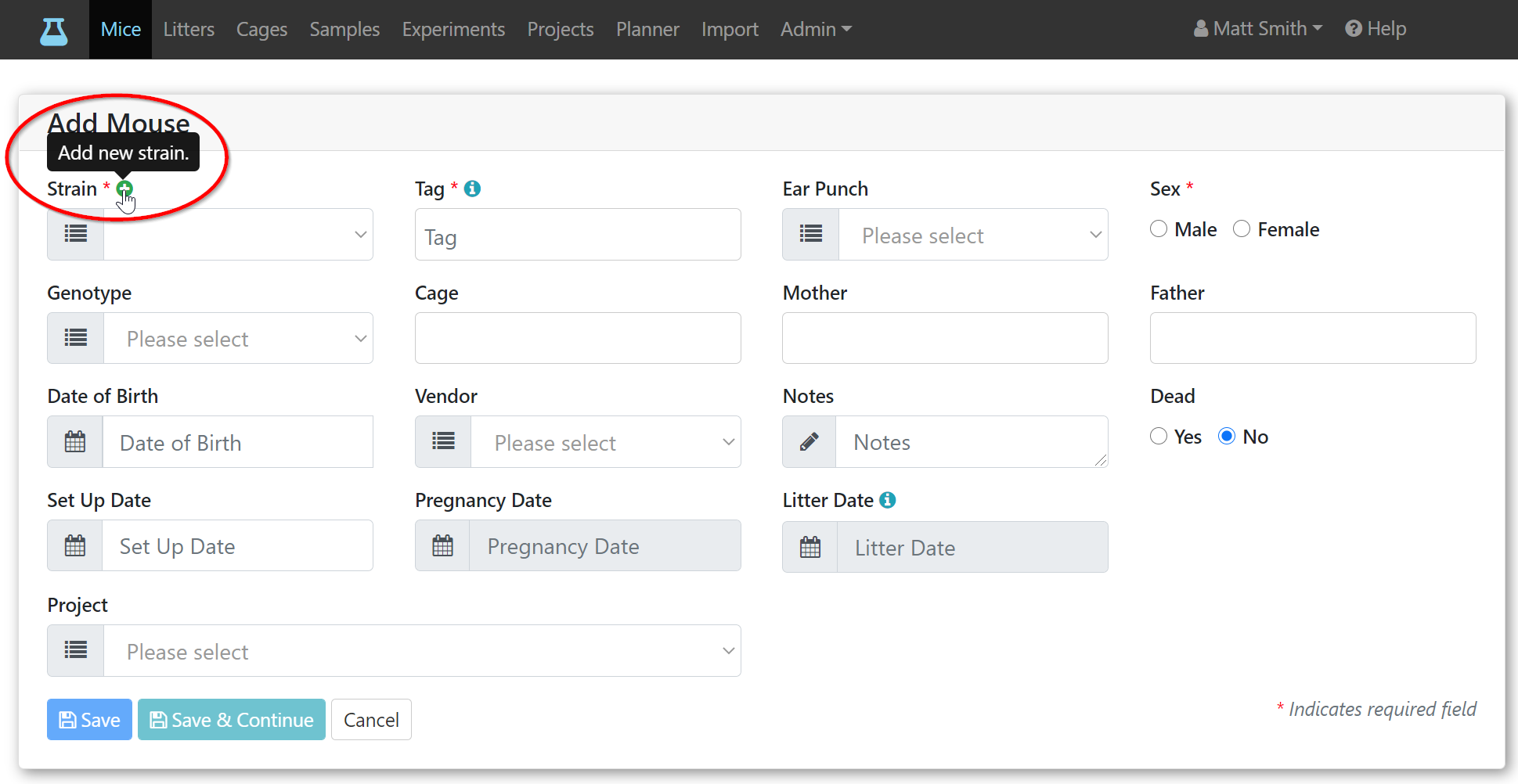
- Since the strain field is required and we don't have a strain yet, we must add one. Click on the green plus icon next to strain.
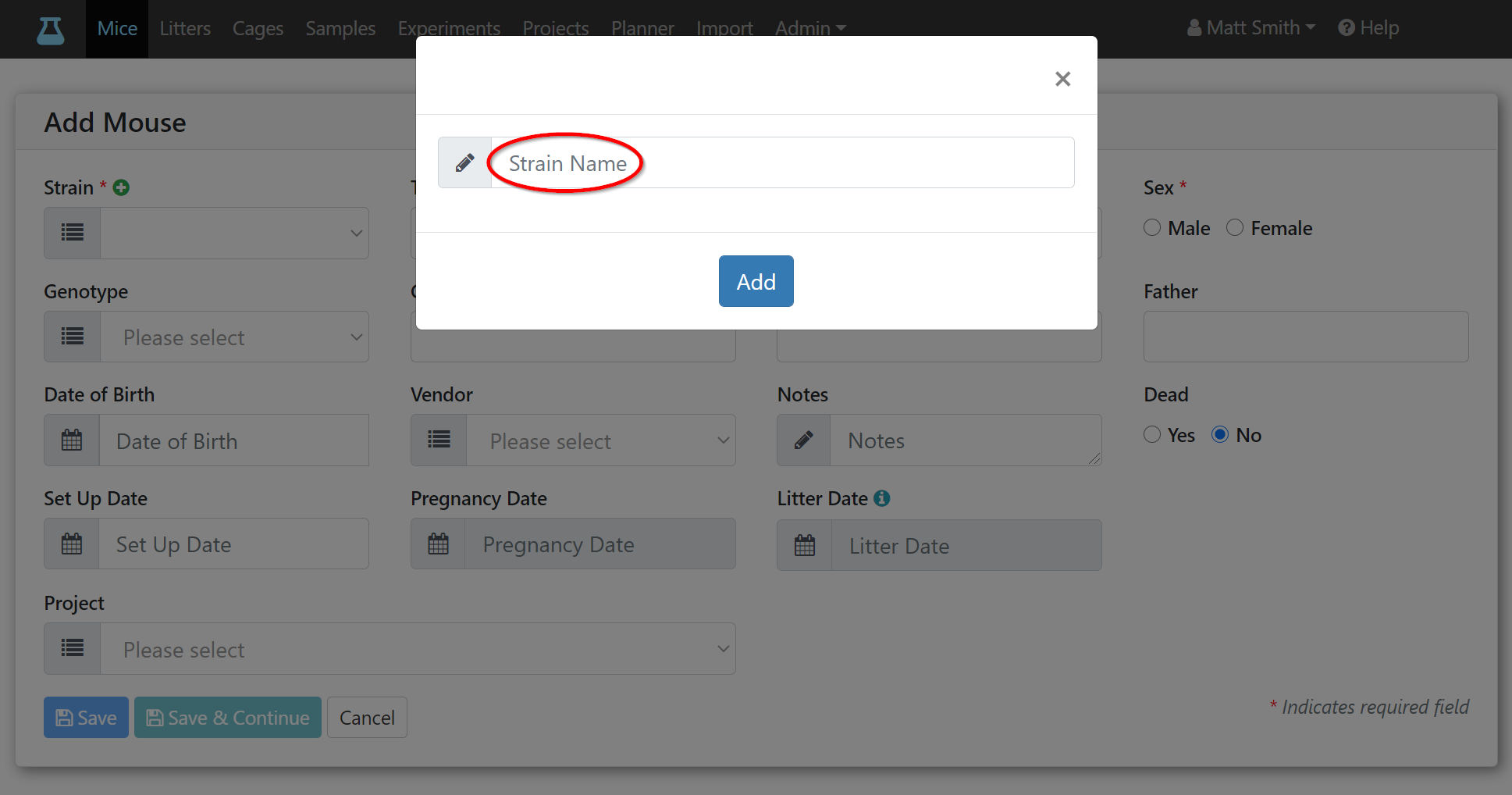
- Enter the strain name and click the
Addbutton to apply the new strain to the input field.
-
The
motherandfatherfields usually suggest female and male mice respectively for the selected strain. Since this is the first mouse entered into Mouse-Cloud, there are no other mice to suggest. You can leave these fields empty for now. They can be changed later via the edit mouse form (see next section). -
Fill out all required fields and optional fields as needed. Dates can be entered via calendar or directly. They must be in MM/DD/YYYY format.
-
To add another similar mouse, click the
Save & Continuebutton.
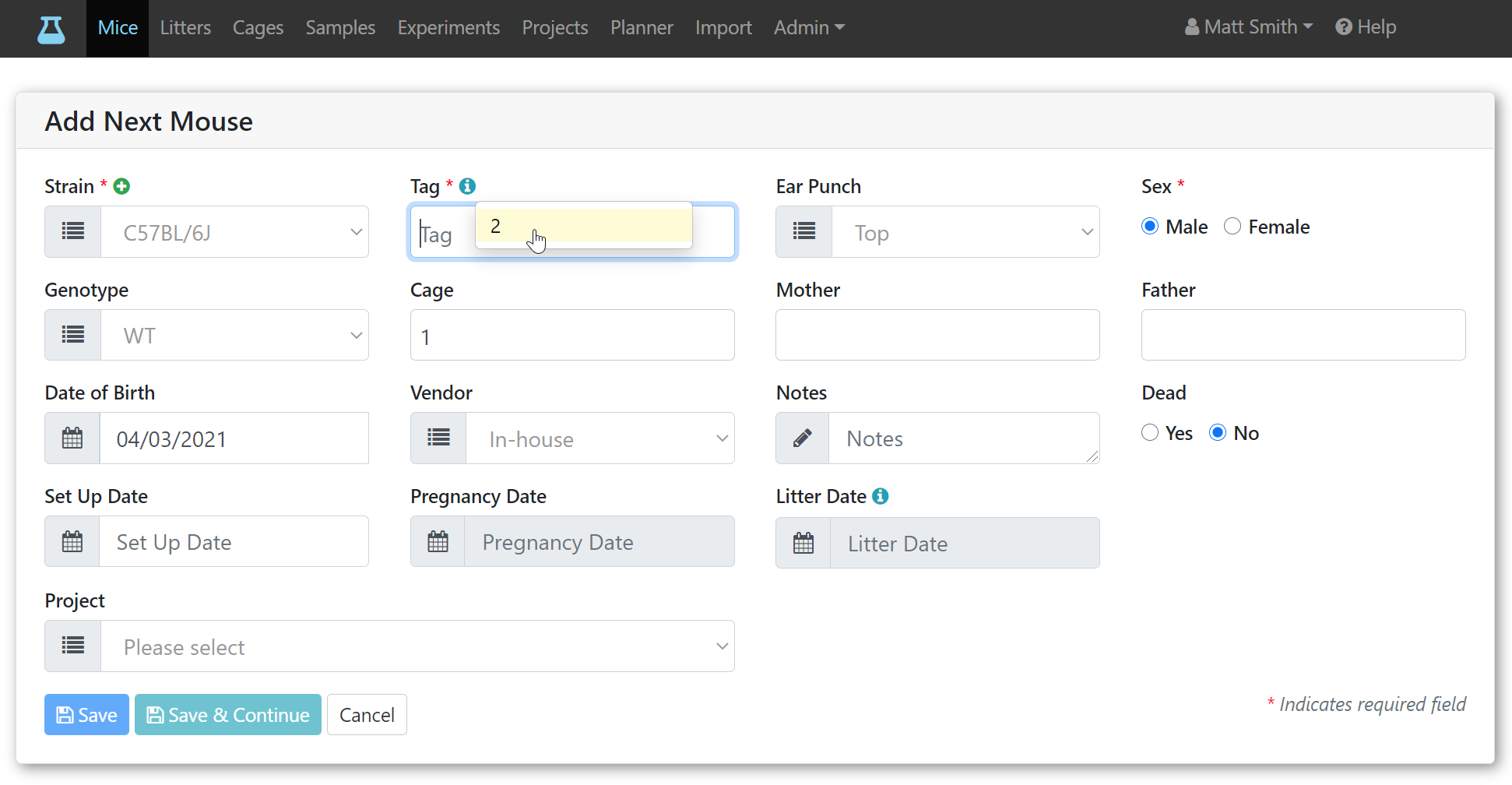
- This will show the the same form but with some fields already filled out. Note that this time the tag field suggest the number 2. It always suggests the next available increment from the number entered last. This is only a suggestion assuming you are taking the next number from a tag roll. However, you could enter a different number (e.g., when starting a new roll). Mouse-Cloud will warn you if a mouse with the entered tag number already exists.
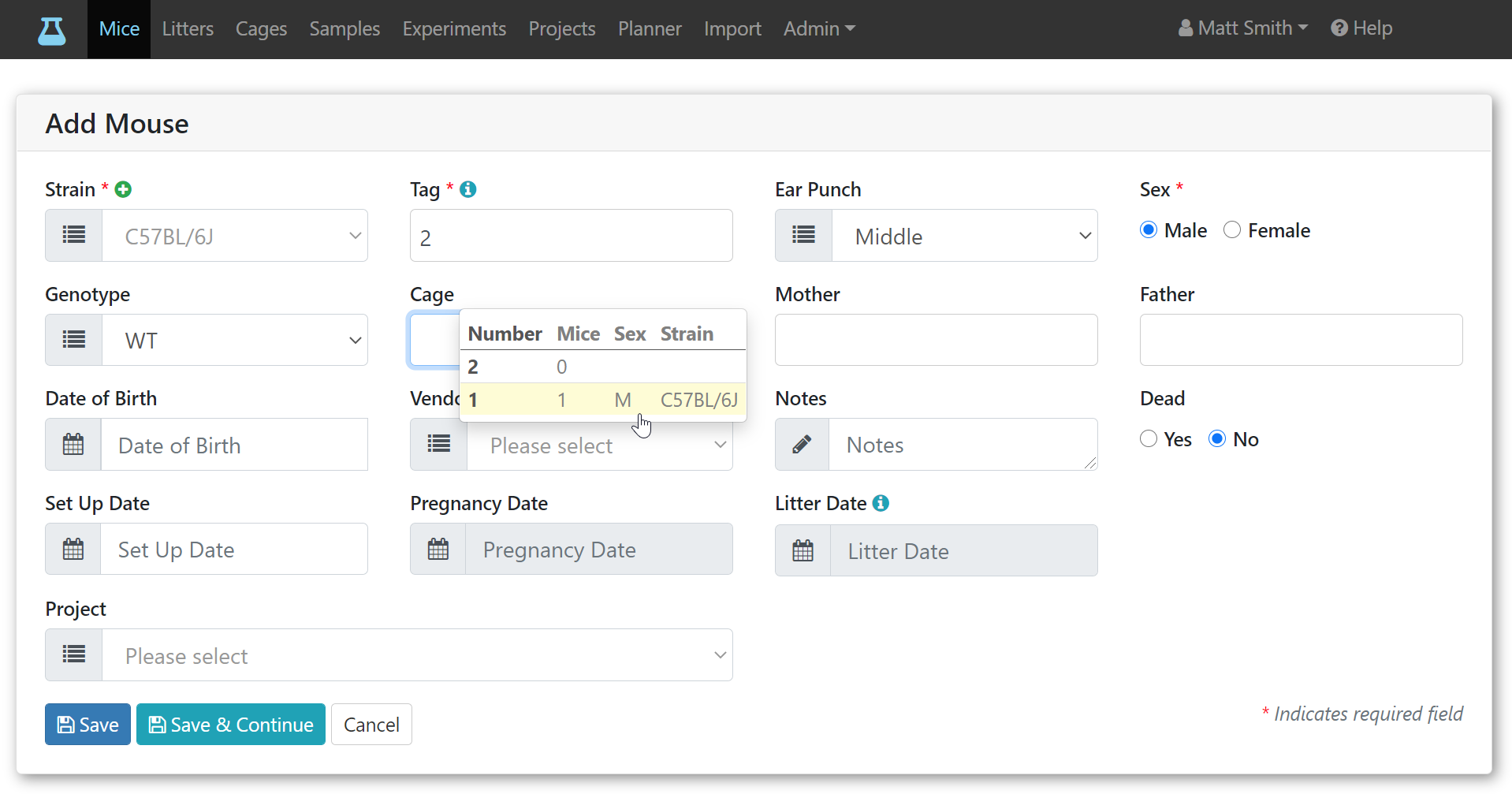
- When clicking on the
Cagefield, a list of existing cages displays (so far we only created one) showing the number of mice per cage plus the sex and strain of the mice in it. At the top of that list, the next available cage number for adding a new empty cage is shown (in our case number 2). After adding more cages, you'll see cages sorted by the number of mice. This helps with distributing mice evenly. The fields for pregnancy and litter date are disabled unless you check the Female box.
- Click the
Savebutton when done entering mice. This will show all fields of the saved mouse.
tip
The Save & Continue button is useful when adding several similar mice such as pups of the same litter. In the Add Litters section, you will learn a different approach.